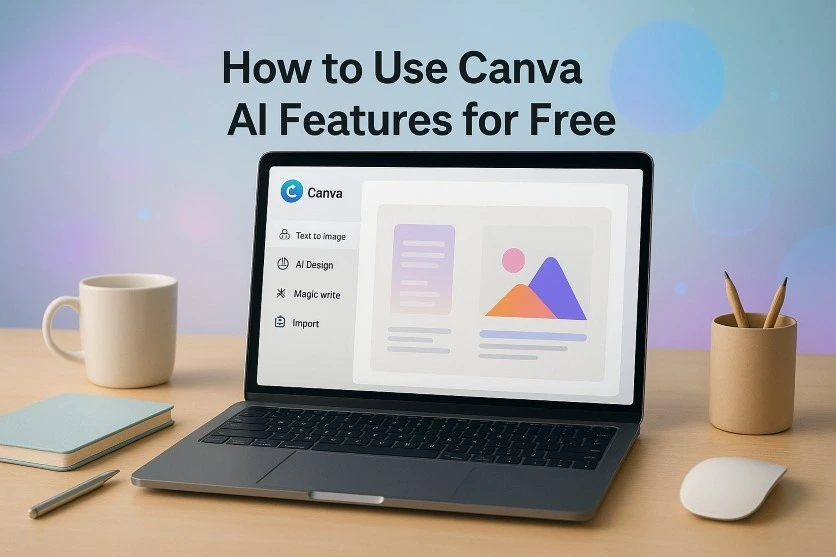
I’m not a pro designer. In fact, most of the time, I just need something simple—a poster for a college event, a quick Instagram story, or maybe a YouTube thumbnail. A year ago, I used to waste hours searching online for templates or trying to learn complicated apps. Then I discovered Canva AI tools, and life got a lot easier.
The best part? You don’t even need to pay to get started. If you’re smart about it, the free version gives you enough to create good content without looking like a beginner. Let me walk you through how I actually use Canva AI in my daily routine.
1. Magic Write – My Caption and Content Buddy
Writing captions is my weak point. Either I write something too formal, or I get stuck thinking for 10 minutes. That’s where Magic Write saves me.
For example, when I wanted to post a picture of my coffee mug, I typed:
“Write a funny Instagram caption about coffee on Monday morning.”
Within seconds, I had 4–5 suggestions. Now, here’s the trick—don’t just copy-paste what it gives. I usually take the line, make it a little funnier, and add emojis or slang I normally use. That way it doesn’t sound robotic, and it still feels like “me.”
2. Set Up Your Canva Account to Access AI Features
This tool is like magic. Sometimes you need a photo that just doesn’t exist in stock images. For example, I needed “a student working on a laptop in a park with pastel tones.” Unsplash and Pexels had nothing close. But Canva’s AI Image tool generated exactly what I had in mind.
The free plan limits how many images you can create, but honestly, if you plan your work, it’s enough. I usually note down 4–5 prompts and then generate them all at once. That way, I don’t waste credits.
3. Background Remover—Quick Fix for Any Photo
Probably my favorite feature. Just upload a photo, click once, and the background disappears. No messy edges, no need to learn Photoshop.
Last month, I had a group picture from a trip. I wanted to use my solo photo for LinkedIn. One click, background gone, and suddenly I looked like I’d hired a professional photographer.
4. Magic Design—No More Blank Canvas Stress
Here’s something nobody talks about: opening Canva and staring at a blank page is intimidating. You don’t know where to start, what color to use, or what font will match.
Magic Design solves this. Upload one image, and Canva shows you multiple ready-to-use layouts. I’ve used it for birthday invites, college event posters, and even a simple resume design. I just pick a layout, change the colors to match my vibe, and I’m done.
5. Brand Kit (Even on Free Plan)
Now, this one’s not fully AI, but it’s worth mentioning. Even in the free plan, you can save your brand colors and fonts. Whenever I design something new, Canva automatically applies those settings. Saves me from manually fixing colors every single time.
My Honest Tips After Using Canva AI
- Don’t overuse AI. Sometimes the designs look too polished, and people can tell. Add your own text, tweak colors, or move elements. Small changes make it personal.
- Batch your work. If you only get limited AI image credits, don’t waste them randomly. Plan your needs, then generate all images in one go.
- Mix AI with your own creativity. Canva gives shortcuts, not final products. If you mix your style with AI suggestions, the output feels unique.
- Use free templates smartly. Even if some are locked, you can recreate similar ones with free shapes and fonts.
Why I Prefer Canva AI Over Other Tools
I’ve tried a few other AI design apps. Most of them are either too complicated or charge you upfront. Canva feels simple. The drag-and-drop system is easy, and the AI tools don’t feel like a separate app—they’re built into the platform.
Also, it’s web-based, so I don’t need to install heavy software. Whether I’m on my laptop or phone, I can design in minutes.
How to Use Canva AI Features for Free in 2025
At the end of the day, Canva AI tools aren’t about replacing creativity—they’re about saving time. Whether it’s writing captions, creating posters, or cleaning up photos, these features cut the effort in half.
If you’re a student, freelancer, or small business owner, you really don’t need to spend money on design software. Just explore the free Canva AI features, and you’ll see how much easier your work gets.
I’ve been using them regularly, and honestly, it feels like having a mini design assistant sitting on my laptop. Give it a try—play around with Magic Write and test the image generator, and you’ll figure out your own workflow.
Written with love on Technical Dudes 🚀